
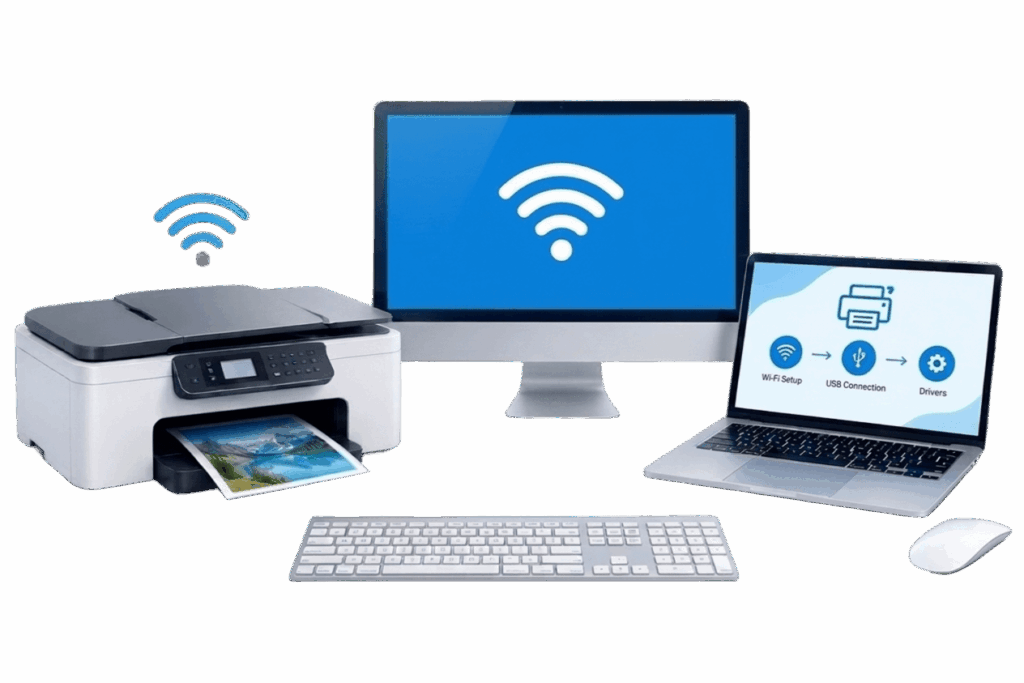
Connect your printer to your home or office wireless network quickly and reliably.
Print effortlessly from any device connected to your Wi-Fi network — no cables required.
Configure safe local network permissions and shared printing across authorized devices.
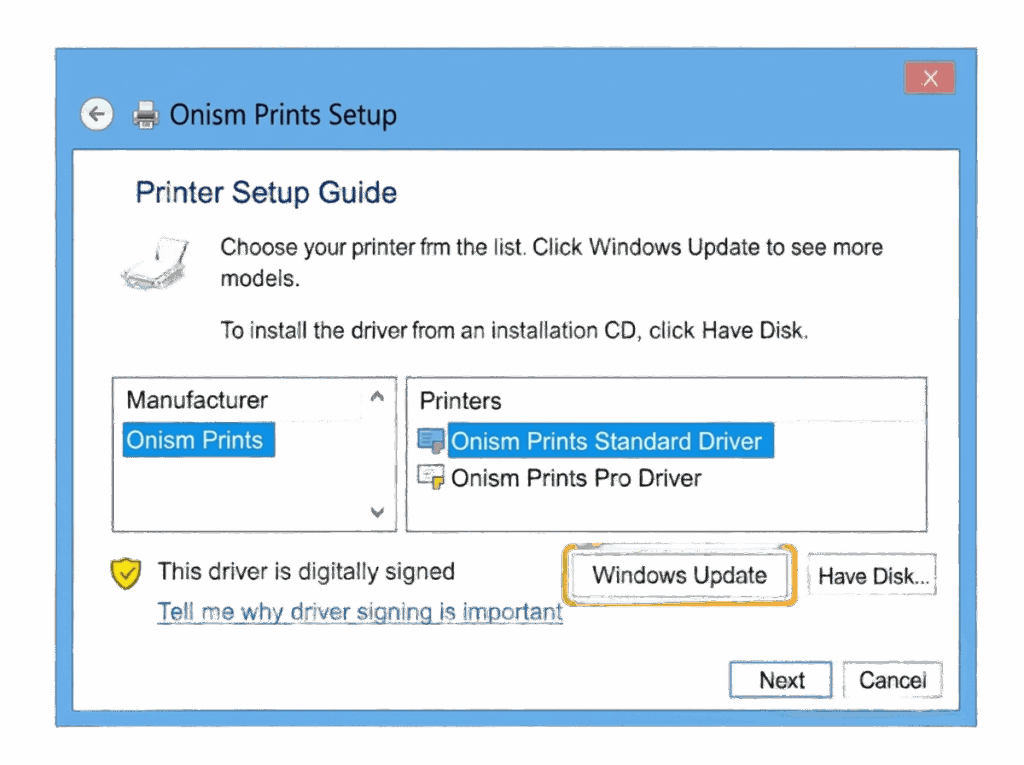
Install and update the right full-feature drivers for Windows and macOS systems.
Set up seamless printing from desktops, laptops, tablets, and mobile phones.
Resolve "Printer Offline" alerts, paper jams, and stuck print queues without hassle.
Follow these essential steps to prepare your hardware, load consumables, and configure your new printer for smooth daily operation:
Note: This setup guide is provided by Onism Prints for general educational assistance. If you encounter hardware errors or driver conflicts during installation, contact our independent support team for guided help.
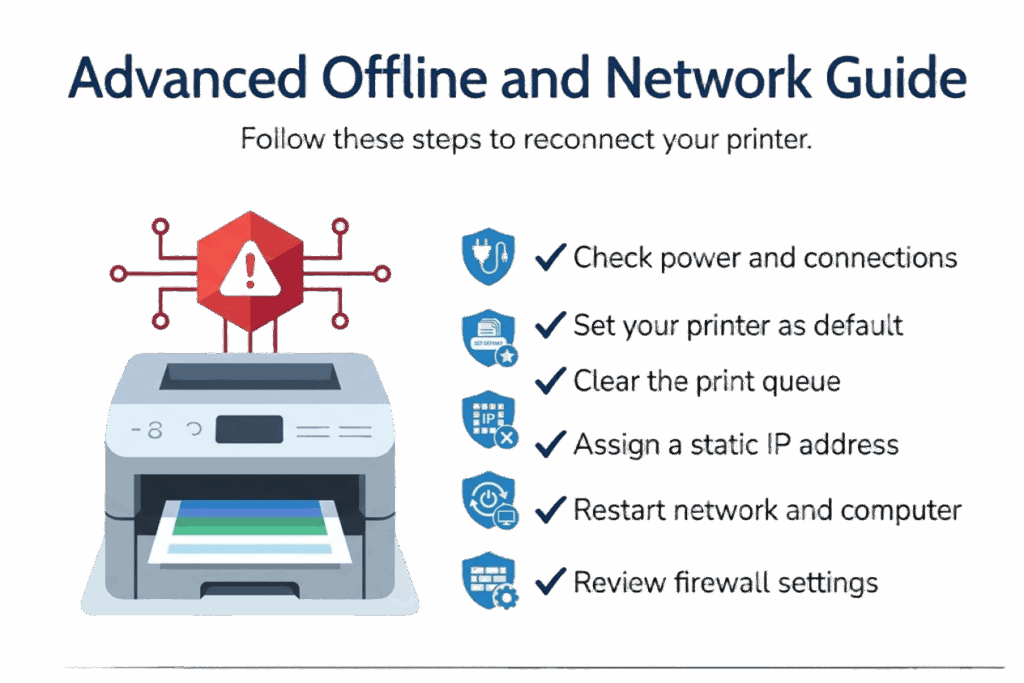
When your computer displays a “Printer Offline” message or fails to detect your device, work through these steps to restore communication:
Check Power and Sleep Status: Make sure the printer is turned on, awake, and displaying a steady power light with no flashing warning indicators.
Quick Tip: Many wireless printers only communicate over a 2.4GHz Wi-Fi frequency. If you use a dual-band router, ensure your printer is connected to the 2.4GHz band rather than an isolated guest network.
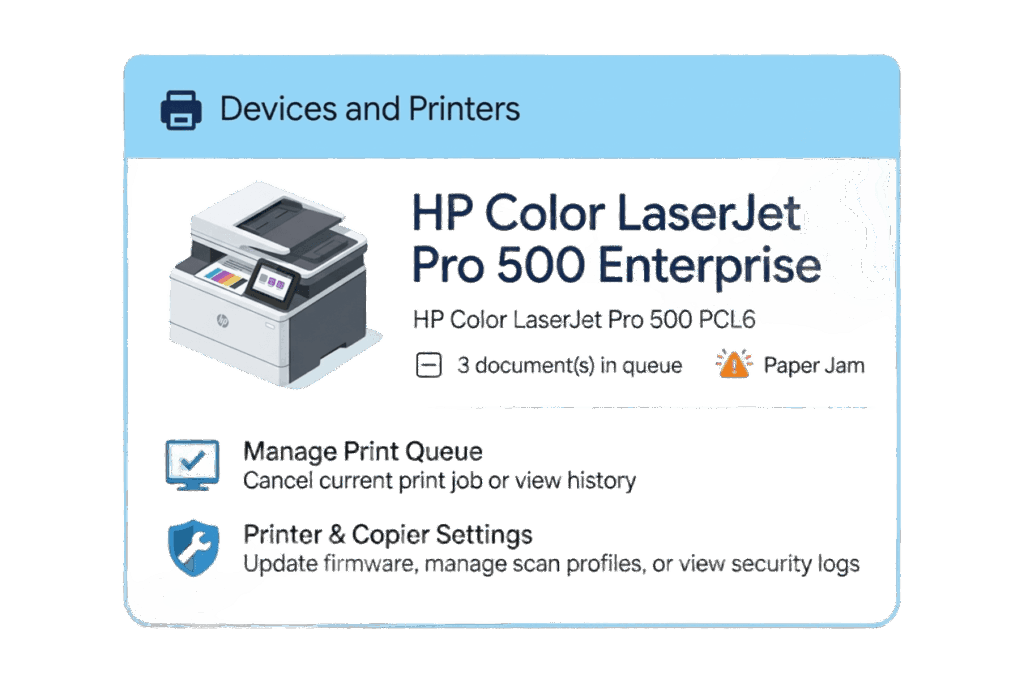
A stable wireless setup lets everyone in your household or office print without tangled cables. Follow the step-by-step instructions below to link your printer to Wi-Fi and fix common connectivity hiccups.
To reset a frozen print spooler service:
Speak with an independent technician for guided remote or on-site configuration.
Independent third-party technical support provided by Onism Prints
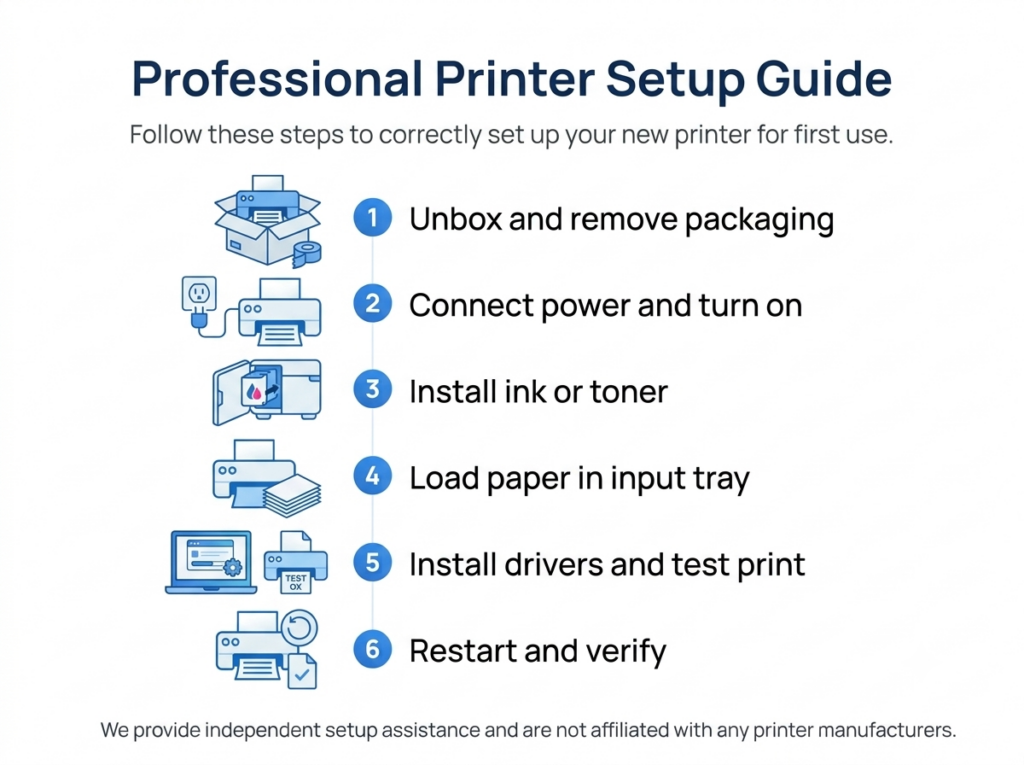
Initial Printer Setup Checklist
Installing the proper printer driver allows your operating system to communicate smoothly with your hardware and unlocks essential features like two-sided printing, tray selection, and optical scanning.
✓ Verify Your Model & OS Version: Check the exact model number printed on the front of your printer and confirm whether you run Windows 10, Windows 11, or macOS.
✓ Remove Old or Conflicting Drivers: Uninstall outdated printer utilities from previous devices to prevent port and spooler conflicts.
✓ Select the Full-Feature Software Package: Choose the complete driver and scanner utility suite rather than a basic generic plug-and-play driver whenever possible.
✓ Choose Your Connection Method: Select Wireless, Ethernet, or USB when prompted by the installation wizard so the software configures the correct communication port.
✓ Customize Default Print Preferences: Set your standard paper size (Letter or A4), default print quality, and grayscale/color preferences.
✓ Restart & Verify: Reboot your computer after installation finishes to lock in registry settings and run a test page.
Having trouble locating or configuring the right driver for your operating system? Onism Prints can walk you through driver installation and port configuration step by step.
© 2025 webinkprinter.store – General printer setup guide for educational use only. This content provides independent setup information and is not affiliated with any manufacturer.
Printer Offline & Network Connection Guide
If your printer repeatedly disconnects after operating system updates, router replacements, or password changes, use these network configuration checks to create a stable link:
Inspect Wireless Signal Strength: Print a network status page from the printer panel to check if weak Wi-Fi signal strength is causing intermittent drops.
Configure a Static IP Address: Reserve a permanent local IP address for your printer so your router doesn’t reassign it after a reboot.
Verify Standard TCP/IP Port Settings: In Windows Printer Properties > Ports, confirm the configured IP port matches the printer’s actual network IP address.
Check Firewall & Security Filters: Ensure third-party firewall or antivirus software isn’t blocking local LAN discovery ports.
Disable SNMP Status Monitoring (If Falsely Offline): In port configuration settings, unchecking SNMP Status Enabled often resolves false “Offline” alerts on network printers.
Perform a Network Factory Reset: When switching to a new internet provider or router, reset the printer’s network memory and run the Wi-Fi Setup Wizard from scratch.
If your shared office or home printer continues to drop off the network, contact Onism Prints for dedicated network diagnostic assistance.
Printer OfflinePrinter Offline
Quick Diagnostic Checkpoints
✓ Check Power & Warning Lights
✓ Confirm Same Wi-Fi Network or USB Link
✓ Uncheck “Use Printer Offline” in Queue
✓ Clear Stuck Print Spooler Jobs
✓ Update Driver & Verify IP Port
© 2025 webinkprinter.store – General printer setup guide for educational use only. This content provides independent setup information and is not affiliated with any manufacturer.
Practical self-help resources and dependable one-on-one support for home and office printing.
Modern wireless and multi-function printers offer tremendous convenience, but getting them to communicate reliably across laptops, desktops, and smartphones isn’t always straightforward. A single mismatched port setting, outdated driver, or dual-band router conflict can bring your daily printing routine to a halt.
Our step-by-step setup and troubleshooting guides are designed to help everyday users and small business teams resolve common configuration hurdles quickly. And when a problem requires deeper diagnostics, our technicians are ready to assist you remotely or on-site.
Onism Prints is an independent third-party technical service provider. We created this Printing Guide as a free educational resource so users can perform basic setup and maintenance checks on their own.
If you prefer hands-on help or run into a complex software or network conflict that self-help steps don’t solve, we offer optional paid technical support with clear, upfront pricing.
We are not affiliated with or endorsed by any printer hardware manufacturer. Any brand names referenced on this page are used strictly to indicate compatibility and help users identify their equipment type.
Reach out to our support team for friendly, step-by-step assistance with your home or office printer.