
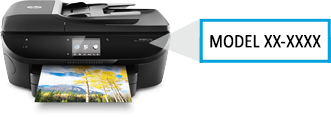
Enter your Brother printer model number to access step-by-step setup instructions, wireless configuration help, and troubleshooting guides.
Checking for Brother printers...
Looking for printers on your local network.
No printers found for .
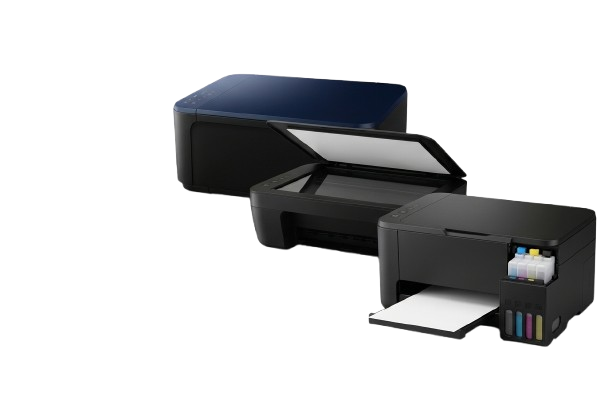
Connect your printer to your home or office wireless router quickly without signal drops.
Follow step-by-step guidance to unpack, install toner or ink, and load paper trays.
Set up protected local network sharing across authorized office and home computers.
Configure full-feature printer and scanner drivers for Windows 10, Windows 11, and macOS.
Get reliable remote or on-site assistance from experienced independent technicians.
Fine-tune print quality, duplex printing, and scan workflows for peak daily performance.

Follow these straightforward instructions to connect your printer to Wi-Fi, connect via USB, resolve offline status, and configure document scanning.
Use the built-in wireless menu on your printer’s control panel to link your device to your local Wi-Fi network
If your computer shows the printer as “Offline” and jobs won’t print, check these essentials
Connect your smartphone or tablet to the same Wi-Fi network as your printer, open any document or photo, and select Print using built-in mobile printing (such as Apple AirPrint or Android Mopria Print Service).
Checklist Items:
Need one-on-one help? If your printer still won’t connect to Wi-Fi or clear an error message, contact our independent technicians for guided support.
Independent Technical Resource: Provided by Onism Prints (onismprints.store) for general setup and troubleshooting assistance.
Known for dependable monochrome laser output, high-yield ink-tank systems, and compact multi-function workhorses, modern home and office printers perform best when configured cleanly from the start. Whether you are setting up a single-function laser unit for crisp invoices or connecting an all-in-one wireless machine for shared office scanning, proper driver and network configuration prevents everyday bottlenecks.
At Onism Prints this guide outlines essential setup steps, wireless pairing tips, and practical fixes for common operational hiccups
Begin by removing all protective tape, orange shipping retainers, and silica packs from inside the printer. On laser models, take out the drum unit and toner cartridge assembly, remove the protective strip, rock the toner gently side to side to distribute the powder evenly, and snap the toner firmly into the drum frame before sliding it back inside. Load plain paper neatly into the main cassette tray, connect the power cord, and install the full driver package on your PC or Mac.
To maintain a dependable wireless link across multiple computers, run the onboard WLAN Setup Wizard while your printer is positioned within a strong signal range of your router. If your printer lacks an LCD screen, you can press the Wi-Fi button on the printer and the WPS button on your router to pair automatically, or connect temporarily via a USB cable to pass your Wi-Fi credentials directly from your computer.
When a printer stops responding, start by checking whether the device has entered Deep Sleep mode or drifted onto a different IP address after a router reboot. Clearing stalled files from the Windows Print Spooler, unchecking “Use Printer Offline,” and ensuring your toner or drum counter is properly reset after a replacement resolves the vast majority of routine interruptions.
No. Onism Print is an independent third-party technical service provider. We are not affiliated with, sponsored by, or authorized by Brother Industries, Ltd. or any other printer manufacturer.
Yes. Our guide walks you through waking the printer from sleep states, verifying Wi-Fi bands, resetting the print spooler, and updating port settings to fix offline alerts.
We offer both convenient remote diagnostic sessions and scheduled on-site setup and troubleshooting visits depending on your location and service needs.
Yes. All self-help articles and setup checklists on onismprints.store are completely free to read and use. If you request personalized one-on-one technician support, any service fees are explained transparently upfront
If you are dealing with an unfamiliar error message, network conflict, or scanner malfunction not covered on this page, simply reach out through our contact form below for personalized assistance.
“My laser printer wouldn’t wake up over Wi-Fi whenever my laptop went to sleep. The static IP and port adjustment steps from Onism Prints solved it permanently.”
“Super helpful instructions for getting our shared office scanner and wireless printing working on both Windows 11 and Mac.”
“Replaced my toner cartridge and the printer kept showing an error. Their technician walked me through the panel reset in five minutes!”