
Enter your Canon product name and model number to access setup guides, driver configuration help, and wireless troubleshooting for your printer.
Checking for HP printers...
Looking for printers on your local network.
No printers found for .
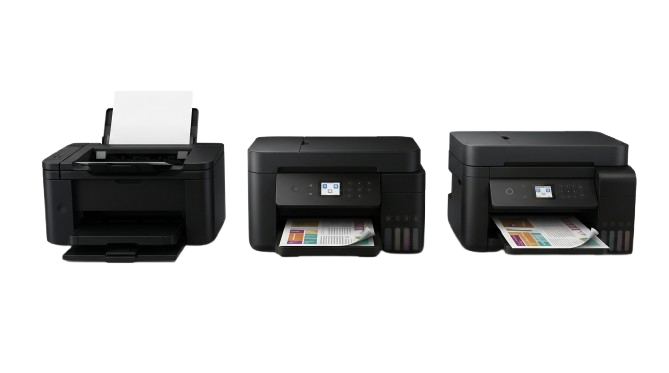
Print effortlessly from any computer, laptop, or mobile device connected to your Wi-Fi network — no cables required.
Follow straightforward, step-by-step instructions to connect your printer to Wi-Fi and start printing in minutes.
Keep your home and office wireless printing protected with properly configured Wi-Fi and local network settings.
Keep your printer software and system settings properly aligned for smooth, dependable wireless performance.
Get friendly, step-by-step technical assistance for any wireless printer setup or connectivity questions
Fine-tune your default print preferences, paper tray settings, and scan options for crisp, high-quality output

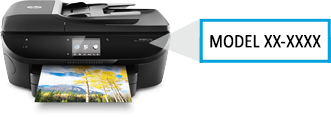
Complete step-by-step instructions to connect a Wi-Fi printer, resolve “Printer Offline” alerts, complete scanner setup, and link your printer to a computer.
To configure a wireless printer for the first time or reconnect after a network change, follow the Wi-Fi connection method below. This resolves common queries like “connect printer to Wi-Fi” and “how to connect my wireless printer.”
Note: If the printer cannot detect your Wi-Fi network, verify your router’s 2.4GHz broadcast settings and make sure you are not connected to an isolated guest network.
Run your operating system’s built-in printer troubleshooter if the device displays an “Offline” status after a router or OS update. If driver conflicts persist, reinstall or update your printer drivers using the official manufacturer support resources listed in your product documentation.
Configure your scanning utility if required, place your document face-down on the platen glass (aligned with the corner arrow), and use your built-in OS scan tool (Windows Scan or macOS Image Capture) for quick document digitization.
If your CPrint printer repeatedly shows offline, re-run the wireless LAN setup wizard on the printer panel or assign a reserved static IP address in your router settings for long-term stability.
Disclaimer: onismprints.store provides independent printer setup and troubleshooting guidance. “CPrint” is used strictly as a neutral identifier and does not represent an official brand. We are not affiliated with or endorsed by any printer manufacturer.
This Canon Compatible Printer Guide offers independent, easy-to-follow information for users looking for assistance with printer setup, wireless connectivity, and everyday maintenance. It is written to explain common home and office printing scenarios in a clear, neutral, and practical manner.
Many users run into roadblocks when unboxing a multi-function printer for the first time or reconnecting an existing printer after upgrading their home Wi-Fi router. This guide walks through those core processes step by step.
Setting up a printer properly involves physical preparation (removing protective packing tapes, seating printheads or ink cartridges, and filling ink tanks), completing initial panel calibration, and establishing a clean connection to your computer or local network. Canon compatible printers support USB, Wi-Fi, and Ethernet connections, and understanding these options helps you choose the most dependable setup for your workspace.
Wireless printing lets multiple desktops, laptops, and smartphones share one printer without running cables across the room. However, strong router signal coverage, choosing the right Wi-Fi band (typically 2.4GHz), and accurate port configuration are essential for uninterrupted operation. This guide outlines standard wireless connection best practices to help minimize setup errors.
“Printer Offline” messages typically appear after power outages, router restarts, IP address shifts, or paused print queues. Power-cycling your network devices, verifying that “Use Printer Offline” is unchecked in Windows, and clearing stuck print spooler files are reliable steps to restore communication quickly.
Consistent, simple maintenance preserves print sharpness and prevents unexpected mechanical hiccups. Keeping the paper feed rollers free of dust, running periodic nozzle check patterns to prevent dried ink clogs, and monitoring ink or toner levels help ensure smooth, reliable output.
This content is provided for general informational purposes only and does not replace official manufacturer manuals. For official documentation, drivers, and warranty services, please visit the official Canon website.
All brand names, product names, and trademarks belong to their respective owners. Onism Prints (onismprints.store) is an independent third-party service provider and is not affiliated with or endorsed by Canon or any printer manufacturer.
No. Onism Prints (onismprints.store) provides independent informational guidance and technical support services and is not affiliated with, endorsed by, or authorized by Canon or any printer manufacturer.
Yes. This guide provides step-by-step instructions to help users reconnect wireless printers to their local Wi-Fi network after router replacements, ISP upgrades, or password changes.
The most common culprits include wireless dropouts, paused print queues, outdated driver ports, or low ink/toner supplies. Practical troubleshooting steps for each of these scenarios are covered abov
No. This guide is designed for general educational and troubleshooting reference only. For model-specific hardware manuals and official resources, users should consult Canon’s official support website.
Yes. Most core setup principles, USB/wireless connection steps, and print spooler troubleshooting methods apply to both newer and older printer models, though menu labels on the control panel may vary slightly.
“This guide explained the wireless printer setup process in a very straightforward way. It saved me a lot of time getting my home printer online.”
“I was struggling to reconnect my printer to Wi-Fi after changing our internet provider. The step-by-step tips here were easy to understand and worked right away.”
“A really helpful overview for fixing common offline and scanner issues. Great resource for anyone who wants simple, jargon-free guidance.”