
Enter your Epson printer model number to access step-by-step setup instructions, wireless configuration help, and troubleshooting guides.
Checking for Epson printers...
Looking for printers on your local network.
No printers found for .
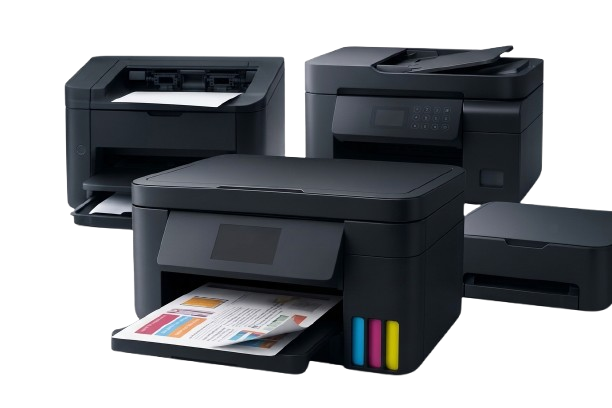
Connect your printer to your home or office wireless router quickly without signal drops.
Follow step-by-step guidance to unpack, install toner or ink, and load paper trays.
Set up protected local network sharing across authorized office and home computers.
Configure full-feature printer and scanner drivers for Windows 10, Windows 11, and macOS.
Get reliable remote or on-site assistance from experienced independent technicians.
Fine-tune print quality, duplex printing, and scan workflows for peak daily performance.

Step-by-step instructions to connect your printer to Wi-Fi, resolve offline status errors, configure scanning, and link your printer to a computer.
Follow these steps to configure a wireless printer for the first time or reconnect your device after a router or password change:
Use a direct USB cable for quick local setup, or add the printer over your local network for wireless printing. On Windows, open Settings → Bluetooth & devices → Printers & scanners (or Devices & Printers); on Mac, open System Settings → Printers & Scanners.
Launch your recommended scanning utility or use the built-in operating system scan tools (Windows Scan or macOS Image Capture). Select your desired scan resolution, file format (PDF or JPEG), and destination folder before starting the scan.
Reminder: For official drivers and firmware updates, always use the official manufacturer support pages listed in your product documentation — we do not host third-party software downloads.
Remove all orange shipping tape and cartridge seals before running your first calibration page.
Need direct assistance? If your printer still won’t connect to Wi-Fi or displays an unfamiliar error code, reach out to the independent technicians at Onism Prints for guided remote or on-site help.
Disclaimer: onismprints.store provides independent printer setup and troubleshooting guidance. “EPrint” is used strictly as a neutral identifier and does not represent any official brand. We are not affiliated with or endorsed by any printer manufacturer.
This Epson Compatible Printer Guide provides independent educational information for users setting up, configuring, or maintaining Epson compatible inkjet, ink-tank, and office printers. It outlines general installation steps and everyday network connectivity practices.
Printer setup hurdles and wireless dropouts are common, particularly when home or office network settings change. This guide helps users understand standard printer behavior and configuration requirements for dependable daily printing.
Proper printer onboarding includes physical hardware preparation, ink tank or cartridge initialization, paper tray alignment, and driver configuration. Completing these initial setup steps accurately helps prevent common hardware and communication errors.
Wireless connectivity allows flexible printing from multiple computers and mobile devices across your workspace. Ensuring that both the printer and your connected devices remain on the same local Wi-Fi network band is essential for smooth operation.
“Printer Offline” notifications, stalled print queues, and slow printing response times can usually be resolved through basic troubleshooting checks. Understanding how to verify network ports, clear spooler queues, and refresh wireless links helps maintain uninterrupted performance.
Routine preventative maintenance improves both print quality and long-term hardware reliability. Keeping the paper path and scanner glass clean, printing regularly to prevent clogged printhead nozzles, and monitoring ink levels are highly recommended.
This guide is provided for informational and educational purposes only. For official manuals, warranty support, and software resources, users should consult the official Epson website.
All brand names, product names, and trademarks belong to their respective owners. Onism Prints is an independent service provider and is not affiliated with or endorsed by Epson or any printer manufacturer.
No. Onism Prints is an independent third-party service provider offering general printer setup and troubleshooting guidance.
Yes. This guide explains practical network configuration steps and router settings that help prevent dropouts and improve wireless printer performance.
Frequent disconnections are typically caused by weak Wi-Fi signal strength, distance from the router, dual-band switching (2.4GHz vs. 5GHz), or dynamic IP address changes. General solutions for these issues are covered in this guide.
No. We do not host or provide proprietary software, drivers, or firmware updates. For official tools and drivers, users should visit Epson’s official website.
Yes. The setup instructions, wireless tips, and maintenance practices apply to a wide range of common home and small-office printer environments.
“This guide helped me understand and avoid common wireless printer setup mistakes. Clear and well explained.”
“I found the wireless setup and static IP tips very useful. The content is simple, practical, and easy to read.”
“A great reference for general printer setup, scanner configuration, and routine maintenance advice.”